Restaurants / POPRICA
Create a restaurant opening-hours update
Make the effective date and revised hours the focus of an opening-hours notice. Use your storefront photo and confirmed operating information in Poprica for an entrance display or social image.
After sign-in, your selected template continues to the creation screen. Review the coin requirement and conditions before generating.
The template guides the visual direction. Poprica generates a new image from your photo and information; it does not simply replace text in the sample image. The result may differ from the reference.
Prepare the source information
- 01An actual entrance or storefront photograph.
- 02The effective date and opening and closing times by day.
- 03Last-order time, closed days and the end of a temporary change.
From brief to reviewed output
- 1
Decide whether the change is temporary or ongoing and write the applicable dates.
- 2
Generate with the new hours prominent and day-specific exceptions clearly separated.
- 3
Compare with other restaurant notices and replace outdated displays.
What to learn from this reference
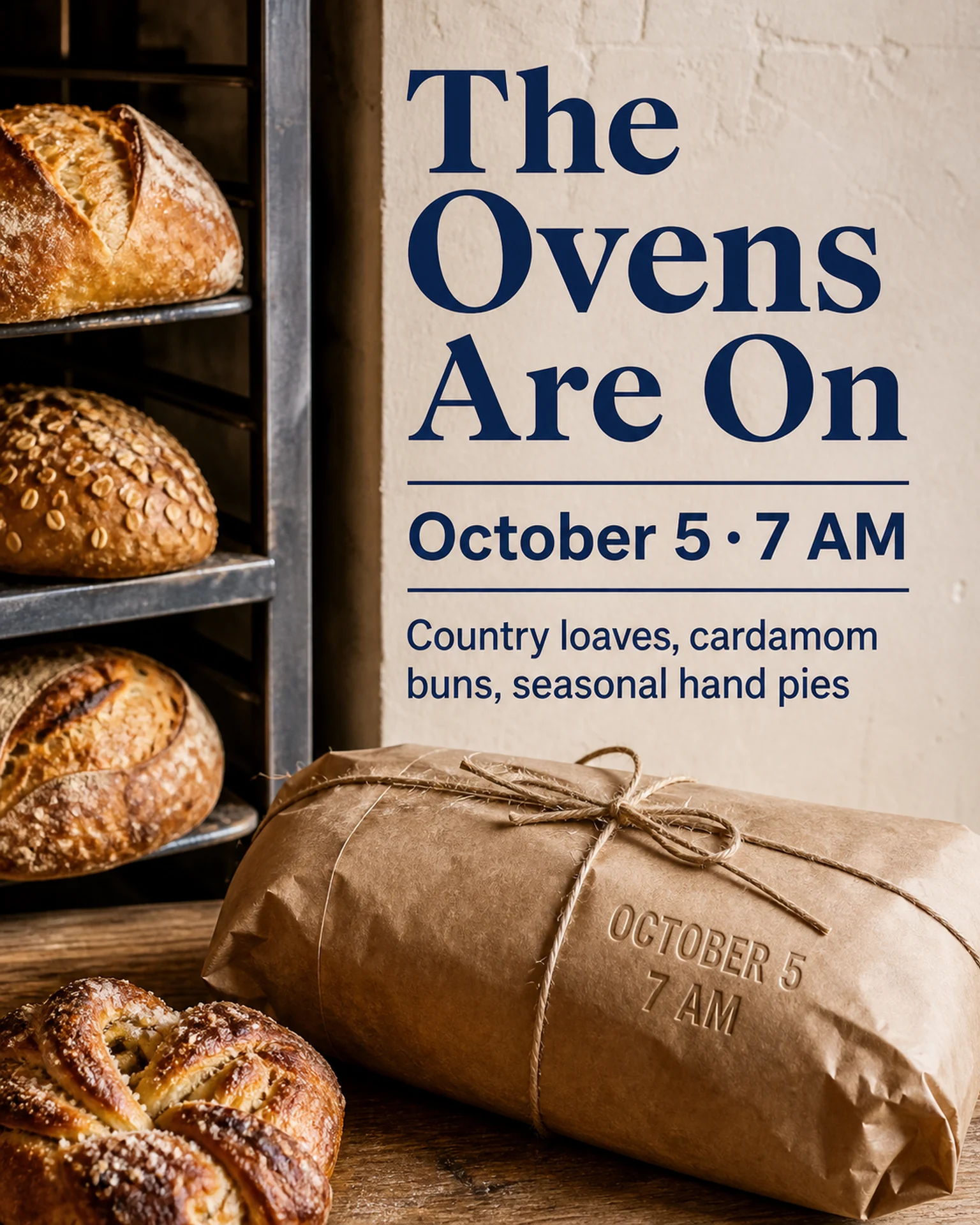
The reference promotes a bakery opening with a prominent date and time. Replace that opening message and imagery with your hours update and add your own weekday conditions.
Browse templates for this use caseCheck before you publish
- Distinguish last orders from closing time.
- Clarify the day when service continues after midnight.
- Label old and new times if both must appear.
Questions before you start
Can it cover a single day?
Display the exact date and separate that exception from normal opening hours.
Will the notice update automatically?
No. It is a static image that the business must replace when its hours change.
Related creation guides
Start with your own photo and approved facts.
Choose the reference, supply your photo and copy, and generate a new design for your specific task.
Poprica editorial team / Reviewed:
このガイドを日本語で読む