Beauty & salons / POPRICA
Create a salon availability post
Publish specific appointment dates and suitable services using a static availability image. Create the notice in Poprica and check the live appointment book immediately before posting.
After sign-in, your selected template continues to the creation screen. Review the coin requirement and conditions before generating.
The template guides the visual direction. Poprica generates a new image from your photo and information; it does not simply replace text in the sample image. The result may differ from the reference.
Prepare the source information
- 01Approved salon or service imagery.
- 02Verified calendar dates, start times and staff availability.
- 03Services that fit the slot and the booking channel.
From brief to reviewed output
- 1
Check that the available duration fits the advertised services.
- 2
Generate with the exact date and time prominent, then add the staff member and contact method.
- 3
Recheck availability and decide how to update the post after booking.
What to learn from this reference
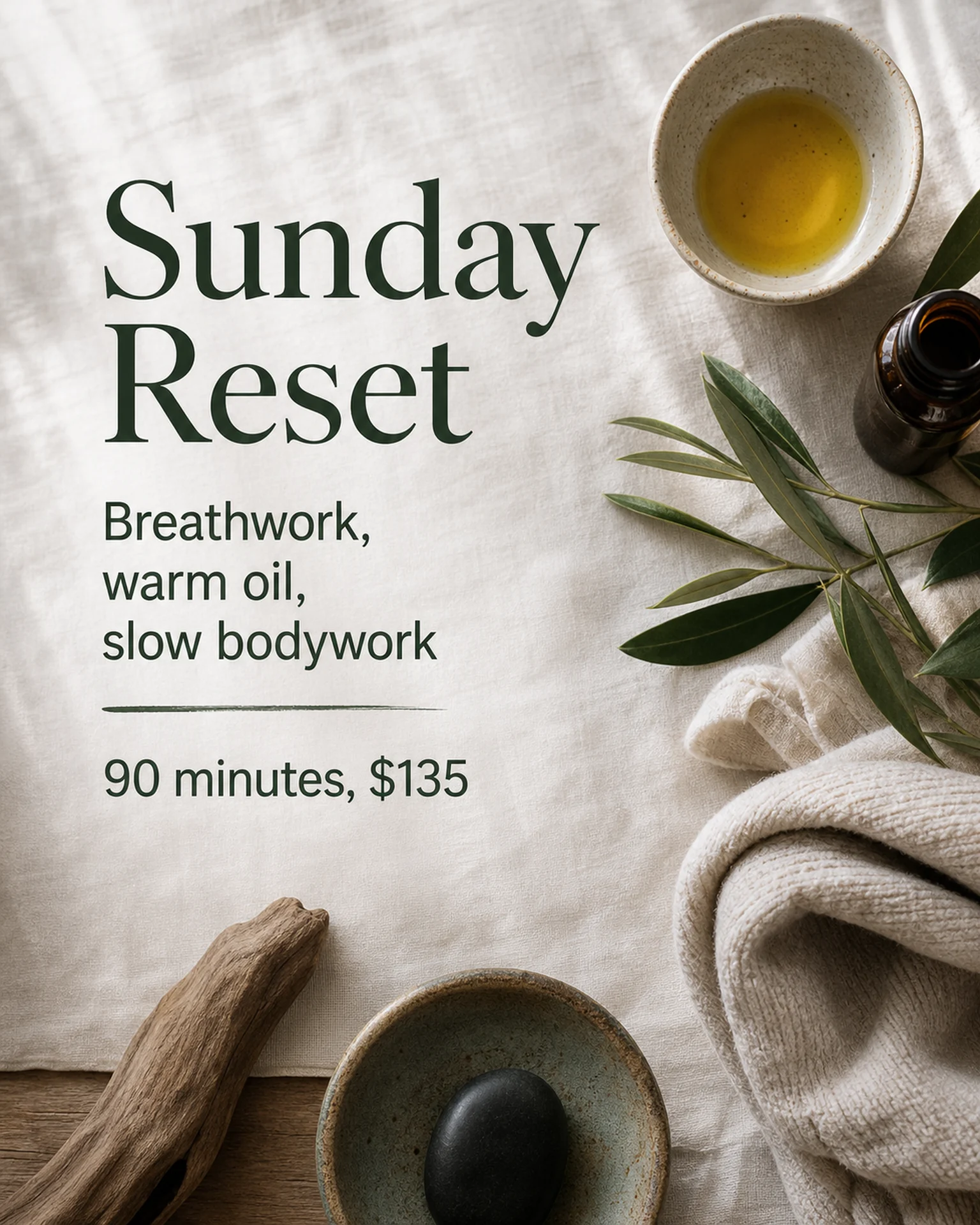
The reference promotes a Sunday bodywork service, not live appointment availability. Replace its descriptive offer with verified dates, staff and booking instructions.
Browse templates for this use caseCheck before you publish
- Use dates rather than an ambiguous weekday alone.
- Explain the actual confirmation process.
- Do not make separate slots look like one continuous available period.
Questions before you start
Will it disappear when booked?
No. The salon must update or remove the static post.
Can it advertise same-day slots?
Use the exact date and time and verify availability at publication.
Related creation guides
Start with your own photo and approved facts.
Choose the reference, supply your photo and copy, and generate a new design for your specific task.
Poprica editorial team / Reviewed:
このガイドを日本語で読む