Retail / POPRICA
Create a restock social image
Identify the returning product and its on-sale date clearly. Generate a phone-readable image in Poprica using a current product photo and restock information checked by the store.
After sign-in, your selected template continues to the creation screen. Review the coin requirement and conditions before generating.
The template guides the visual direction. Poprica generates a new image from your photo and information; it does not simply replace text in the sample image. The result may differ from the reference.
Prepare the source information
- 01A photo matching the restocked item.
- 02Its name, available variants, price and return date.
- 03Confirmed holds or purchase limits.
From brief to reviewed output
- 1
Check which variants have actually returned to stock.
- 2
Generate with the product and restock message prominent, then add dates and conditions.
- 3
Recheck availability at the time of posting.
What to learn from this reference
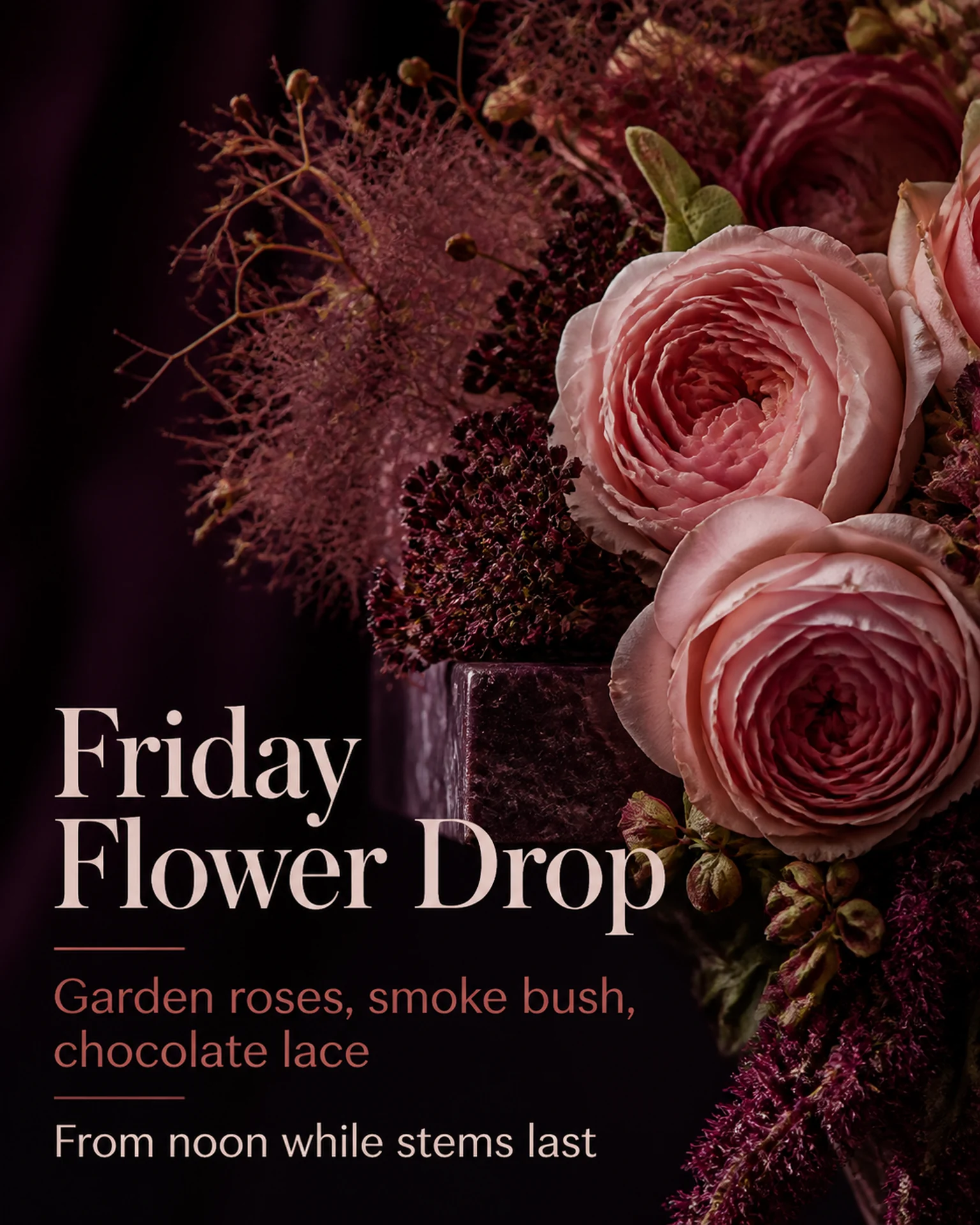
The reference announces a Friday flower arrival. Replace its flowers and timing with your returning product and verified selling date; a recurring arrival is not proof of your restock.
Browse templates for this use caseCheck before you publish
- Do not imply every variant is available when only some returned.
- Avoid stale remaining-stock claims in reusable images.
- Verify the photographed model against the merchandise.
Questions before you start
Does it change after sell-out?
No. Plan how the image or caption will be updated when availability changes.
Can I reuse an older product photo?
Check that its specification still matches and that you have permission to use it.
Related creation guides
Start with your own photo and approved facts.
Choose the reference, supply your photo and copy, and generate a new design for your specific task.
Poprica editorial team / Reviewed:
このガイドを日本語で読む