Retail / POPRICA
Create a product-size comparison card
Pair each product version with verified measurements. Use photographs and approved dimensions in Poprica so customers do not have to infer size from the apparent scale of the image.
After sign-in, your selected template continues to the creation screen. Review the coin requirement and conditions before generating.
The template guides the visual direction. Poprica generates a new image from your photo and information; it does not simply replace text in the sample image. The result may differ from the reference.
Prepare the source information
- 01Photos of each actual size being compared.
- 02Measured or specification-verified dimensions with units.
- 03Size names, prices and the points being measured.
From brief to reviewed output
- 1
Choose comparable dimensions and standardize measurement points and units.
- 2
Generate with a separate photo and number group for each size.
- 3
Check every value against the source and inspect whether image scaling could mislead.
What to learn from this reference
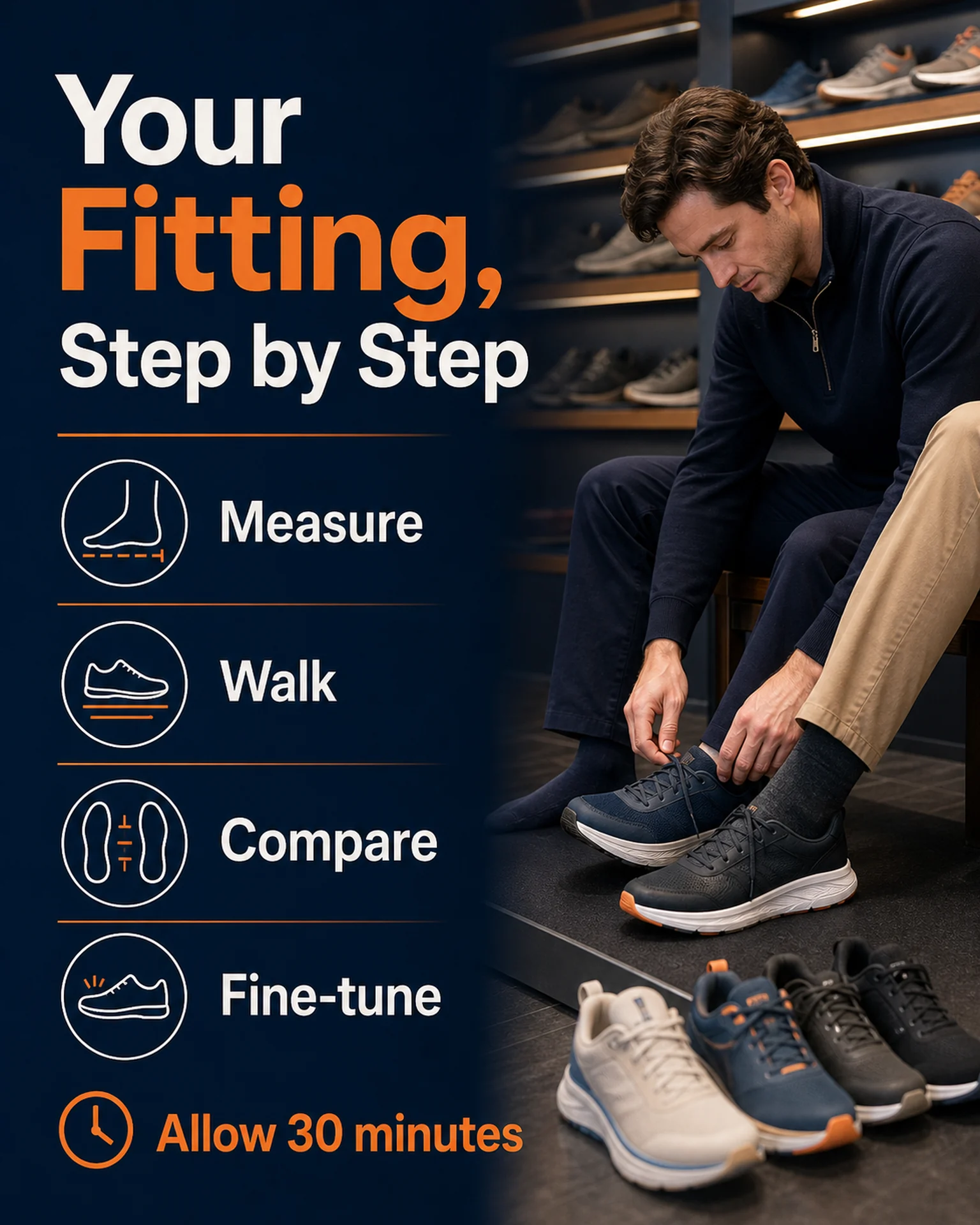
The reference is a shoe-fitting guide, not a proven dimensional comparison chart. If adapting its step areas to sizes and measurements, validate each numerical relationship in the output.
Browse templates for this use caseCheck before you publish
- Do not derive measurements from pixel widths.
- Keep internal and external dimensions distinct.
- Verify table relationships in the generated result rather than assuming alignment.
Questions before you start
Will it create an accurate scale drawing?
No scale accuracy is promised here. Present verified dimensions as text rather than relying on generated geometry.
What if there are many sizes?
Split the comparison by a meaningful dimension instead of compressing all numbers into one image.
Related creation guides
Start with your own photo and approved facts.
Choose the reference, supply your photo and copy, and generate a new design for your specific task.
Poprica editorial team / Reviewed:
このガイドを日本語で読む